The studio
Subtitles
Let viewers read what you say — translated into their own language where their browser can do it.
Your studio can write down what you say, sentence by sentence, and show it to your viewers as subtitles. On a computer with Chrome, viewers read them in their own language.
Turn subtitles on
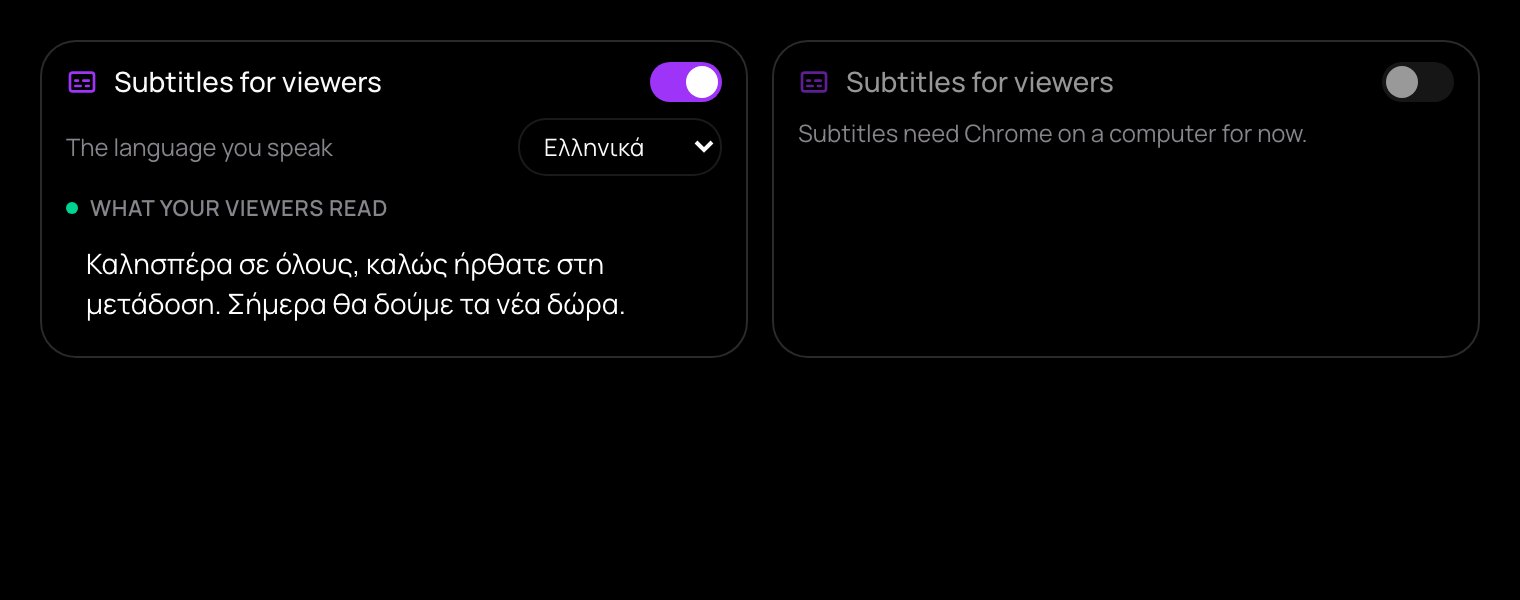
- Go live in the browser studio, in Chrome on a computer.
- In the Stream tab, switch on Subtitles for viewers.
- Choose The language you speak.
Under What your viewers read you see each line as it goes out. Subtitles start switched off on every stream, so turn them on each time; the studio remembers your language.
What viewers see
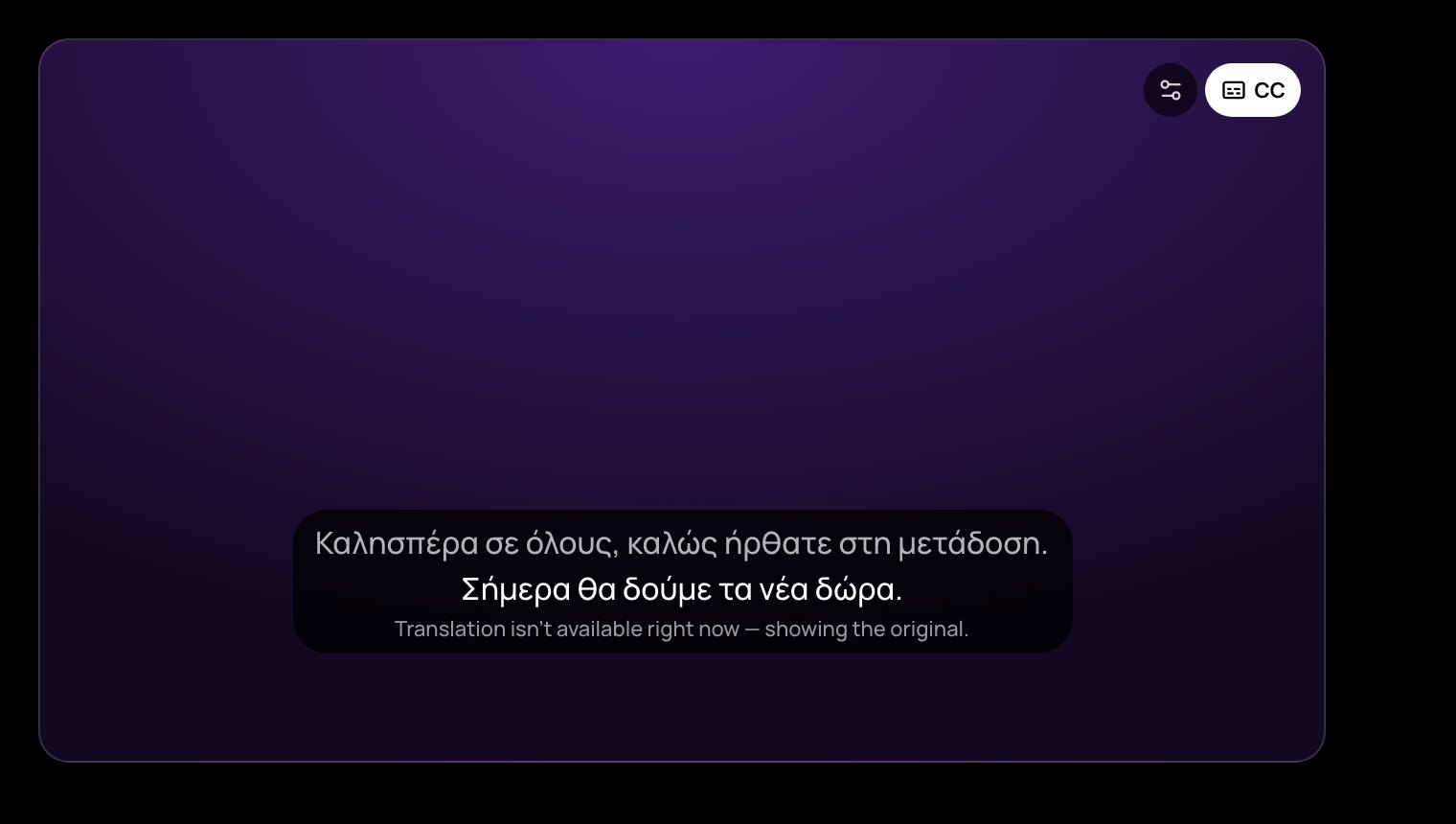
Your viewers get a CC button on your stream, on computers and phones, in any browser.
- In Chrome on a computer, the lines are translated into the viewer's language on their own device. The ⚙ button beside CC changes the language under Translate to, or shows the original.
- On phones and in other browsers, the lines come in your language. Viewers can use their browser's own Translate.
- Each line arrives together with the viewer's picture, never ahead of it.
Good to know
- Only your own voice is written: crowd sounds, a shared tab's sound and your guests are not. Subtitles follow your real voice, even when a Voice effect is on.
- A muted microphone writes nothing.
- Nothing is kept: replays have no subtitles.
- Not available with OBS. In another browser, the switch says Subtitles need Chrome on a computer for now.
- The words are written by the browser from speech, so expect a few mistakes.