Becoming a creator
Your channel
Edit your channel page, set your subscription tiers, and find your Dashboard, replays and clips.
With a NETSTREAM NFT you have a channel: a public page with your banner, photo, name, description, streams and clips.
Edit it
On a computer, use Edit Channel among the round creator buttons on the right edge of the screen. Anywhere: account menu → Menu → Your profile. On your own channel page, Edit channel opens the same editor.
You edit the page itself, in place:
- Banner: press Change banner. Photo: click your round photo. Images can be up to 5 MB.
- Name and description: type where they appear.
- The small dashed buttons: Add social links, Add categories (up to 3), Show in Near me and Offer a paid subscription.
Nothing is public until you press Save in the bar at the bottom. Preview shows the page as visitors will see it; Discard drops unsaved changes.
Followers
Your followers get a notification when you go live. Tap the follower count on your channel to see who follows you.
Subscription tiers
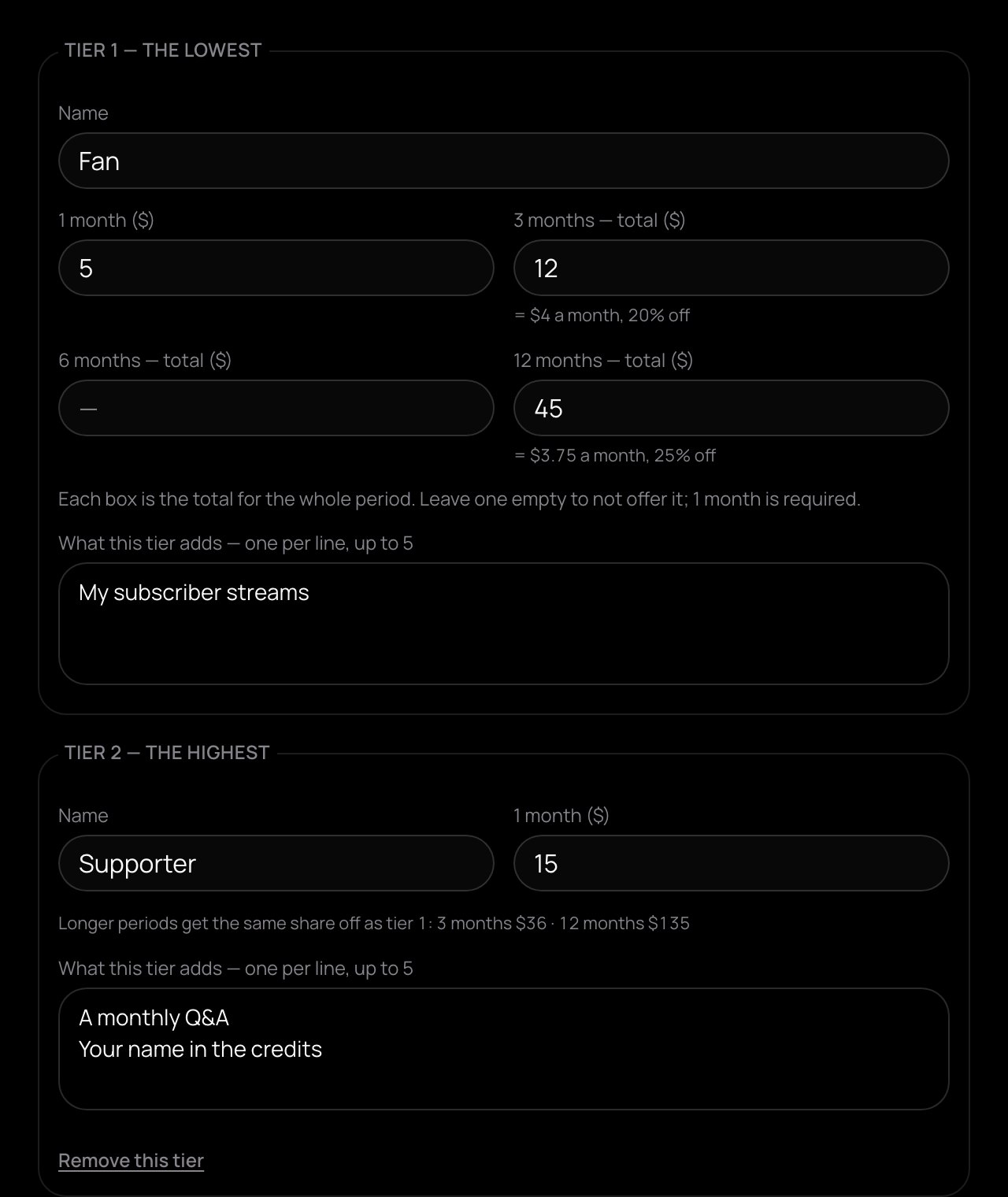
- Press Offer a paid subscription, then switch on Offer subscriptions.
- Set the price for 1 month (required). The 3, 6 and 12-month boxes are the total for the whole period; leave one empty to not offer it.
- Write what subscribers get, one per line (up to 5).
- If you like, Add a higher tier — three tiers at most. Give each a name and a monthly price above the tier below; longer periods get the same share off as tier 1.
- Press Done, then Save.
A higher tier includes everything below it. The app enforces two things: streams you make for a tier and up, and the subscriber badge in your chat. Anything else you write is your promise. A subscription is one payment per period and doesn't renew by itself; you receive 80% of it.
Dashboard and Go Live
- Dashboard is your back office: totals, then the tabs Earnings, Streams, Clips, Scheduled, Signature gift and Chat & safety. On a phone it is the last button of the bottom bar.
- Go Live is where you set up and run a stream (on a phone, the round button in the middle of the bottom bar). When you end a stream, you land back in your Dashboard.
Replays and clips
After a stream, Dashboard → Streams lists it with its replay: Replay processing…, then Replay · until a date. Replays are kept for 30 days. Analytics opens the stream's numbers.
While live, press Clip in the studio, next to Looks, to save the last 15, 30 or 60 seconds. Clips are under Clips in your Dashboard and show as round bubbles on your channel.