The studio
Guests on stage
Bring viewers into your stream on camera or by voice, and manage who is on.
Up to three viewers at a time can join your stream as guests. Everyone watching sees and hears them. Guests need the browser studio: they can't join an OBS stream, a live event or a battle.
Let viewers ask
- While you are live, open the Guests tab beside the preview.
- Under Guests on screen, choose how many can be on at once: Off, 1, 2 or 3. It starts at Off.
- Viewers now see Ask to join under your stream. They ask With camera or Voice only.
- Their requests appear under Requests, and a number on the Guests tab tells you there are some. Press Invite to bring someone on, or Decline.
An invited viewer has 30 seconds to join. Under Invited you see the seconds left, and you can cancel the invitation.
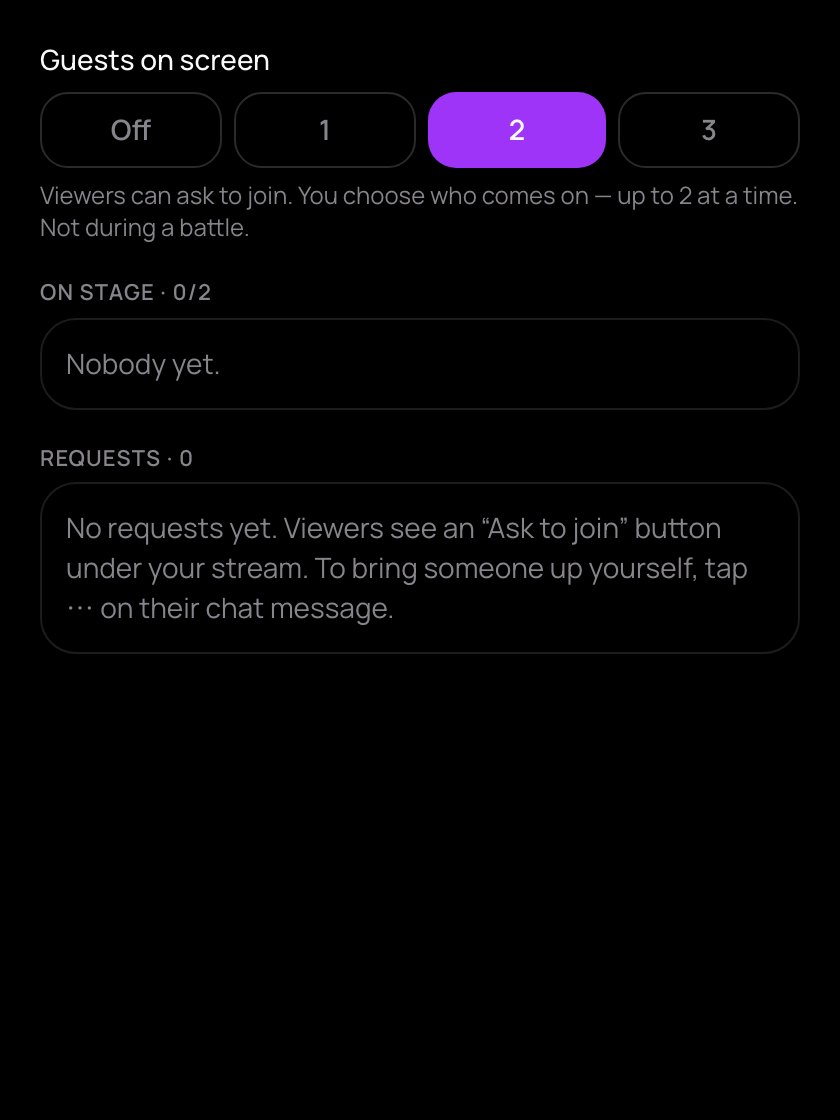
Bring a viewer up yourself
In the chat, tap ⋯ on a viewer's message and choose Bring up to talk (voice) or Bring up on camera. This works even when guests are Off: a seat opens for them, as long as fewer than three are on.
On stage
Under On stage you see each guest, with a camera or voice mark, and two buttons:
- the microphone button (Mute / Unmute) turns their sound off or on for viewers;
- Remove takes them off your stream.
A voice-only guest is heard, not seen. Set how loud your guests are with the Guests fader in the sound mixer.
While guests are on stage, your shared screen is hidden and you can't start a battle. Remove your guests first.
Good to know
- A viewer you banned from your chat can't be invited.
- Guests add work for your computer. If the studio says your computer can't keep up, close other apps and tabs.