The studio
Clips
Keep a moment of your live stream as a short clip, and find it afterwards.
A clip keeps 15, 30 or 60 seconds of your live stream as a short video on your channel. You press Clip the moment something happens; the clip is the seconds just before that press.
Make a clip
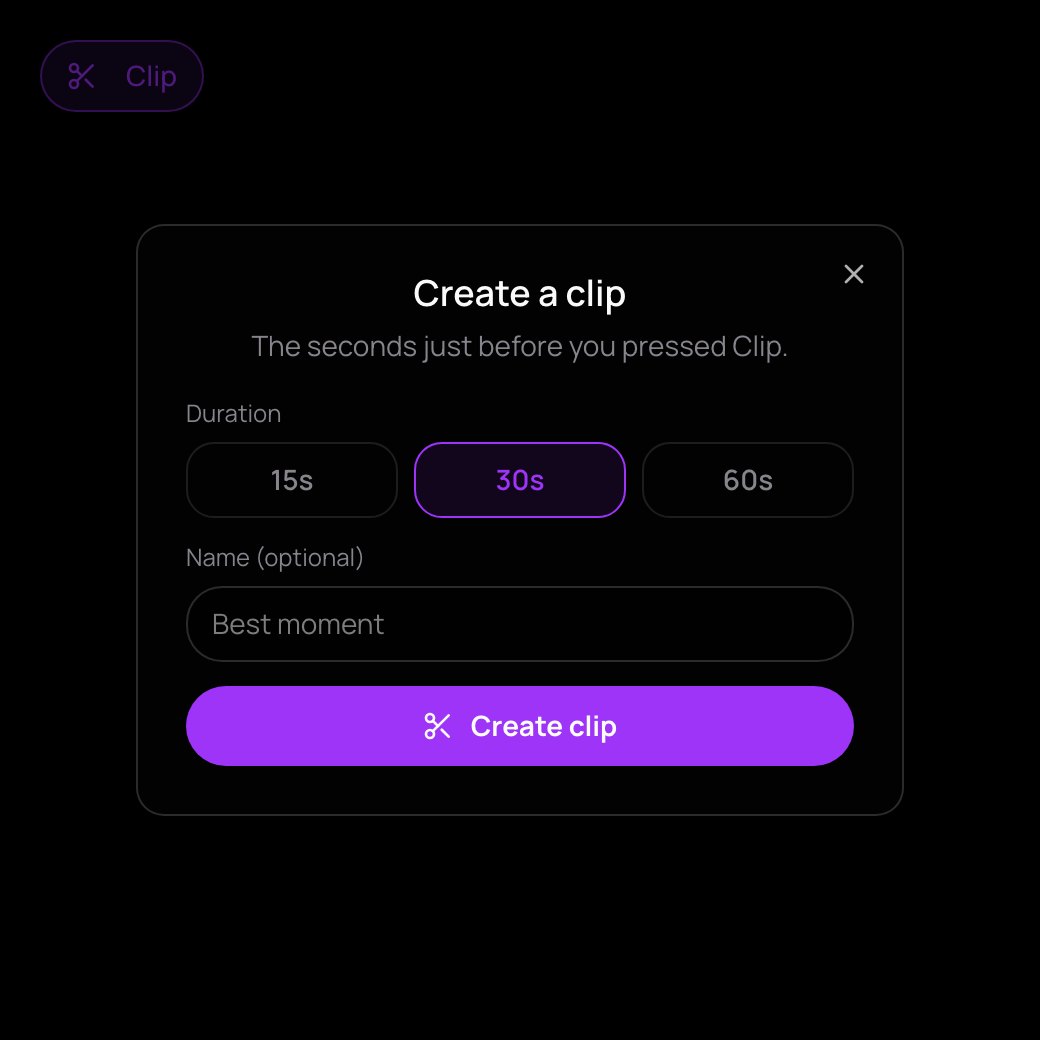
- While you are live, press Clip in the bar under your preview, next to Looks. If you broadcast with OBS, it is next to End stream.
- Choose the Duration: 15s, 30s or 60s.
- Type a name if you like, under Name (optional).
- Press Create clip.
The clip ends at the moment you pressed Clip, not when you pressed Create clip. So press Clip first, then take your time choosing the length and the name.
Where it appears
A message says Clip created — it'll appear on your channel shortly. The clip is cut in the background. You find it:
- in your Dashboard, in the Clips tab, marked Processing… until it is ready;
- on your channel page, under Clips;
- on a page of its own, which you can share.
Good to know
- Only you can clip your stream, and only while it is live.
- The Clip window remembers your moment for up to ten minutes. Leave it open longer and the clip no longer reaches back to that moment.
- If a clip shows Couldn't be made, make a new one.
- Clips stay until you delete them, in the Dashboard's Clips tab. Deleting a stream does not delete its clips.
- The stream analytics count the clips you made during each stream.