The studio
Go live
Start a live stream from your browser or with OBS, what the checks mean, and how to end it.
Open Go Live: the round camera button in the middle of the bottom bar on a phone, or Go Live on the right-hand rail on a computer. Going live needs a NETSTREAM NFT and an approved identity check.
Three steps
A strip over the preview walks you through them:
- Details: press Add details, type a Stream title (the only thing you must fill in) and pick a Category.
- Camera check: press Turn on camera & mic and tap Allow when your browser asks. Three chips under the preview show your camera, microphone and upload speed. A red one needs fixing first, then press Check again.
- Go live: press Go live in the bar under the preview.
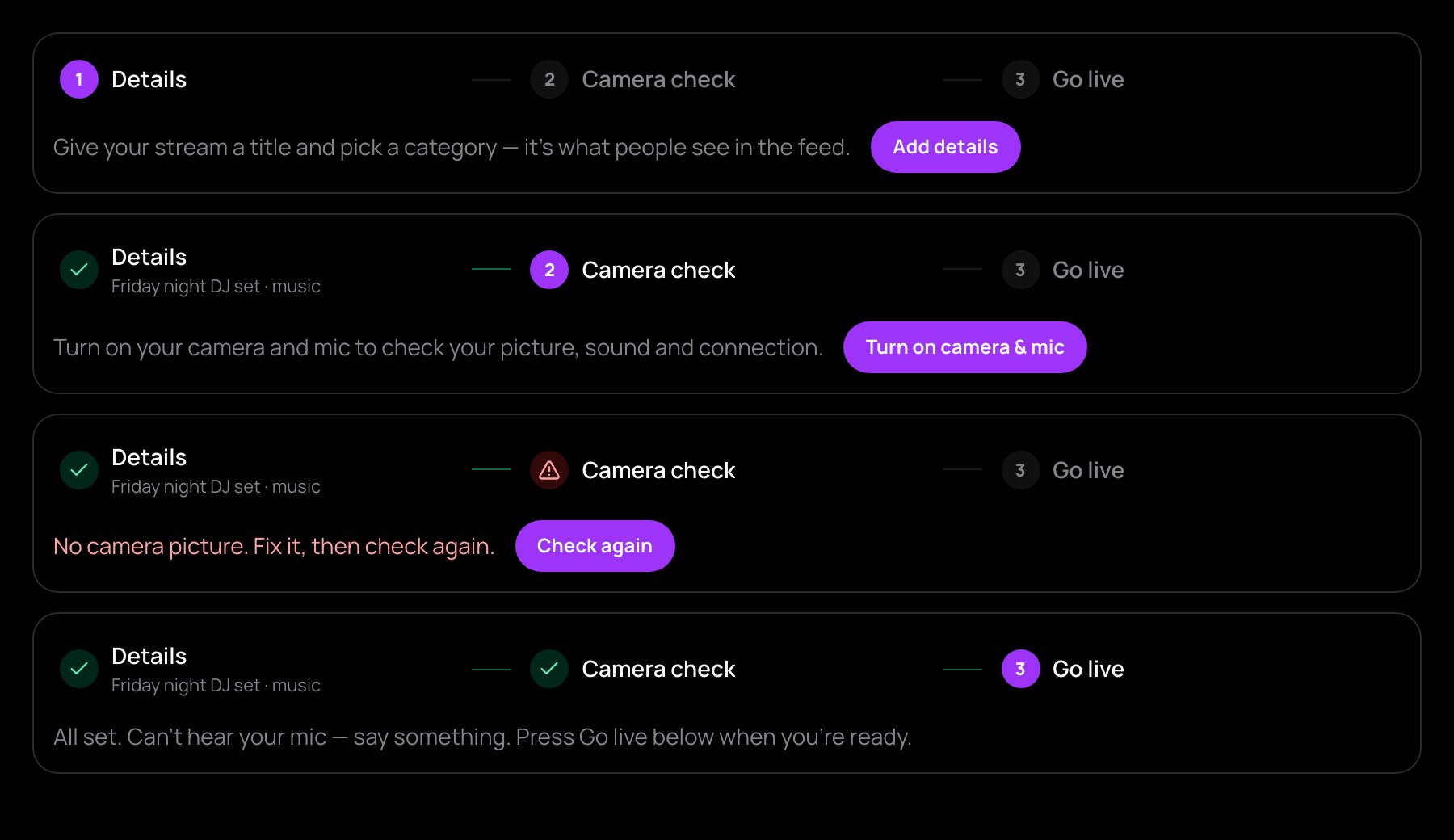
If your browser blocks the camera or microphone, a card under the picture says how to allow it. No stream starts until they work, or until you choose Go live without a camera (or microphone).
Stream settings
In the Stream tab you also choose who can watch: Free — everyone, Subscribers — paid fans or Pay-per-view — one-time (pay-per-view needs a price). There are switches for NFT holders only, 18+ stream and Watch-to-Earn rewards, and the Orientation. With Schedule for later (optional) the button becomes Schedule stream. Once you are live these settings are locked, except 18+ stream.
With OBS
Turn on Broadcast with OBS instead and press Create OBS stream. Paste the Server (RTMP URL) and Stream key into OBS (Settings → Stream → Custom) and press Start Streaming there. The page shows the recommended settings; the key works for 12 hours. With OBS there are no Looks, Voice, guests, battles or subtitles.
While you are live
- BRB covers your picture with a "Be right back" card and turns your microphone off.
- Other pages of the app keep your broadcast on; a small card takes you Back to studio. Changing language, signing out or leaving the app ends it, so the app asks first.
- On a phone, keep NETSTREAM open and in front: switching apps or locking the phone stops the camera.
A weak connection
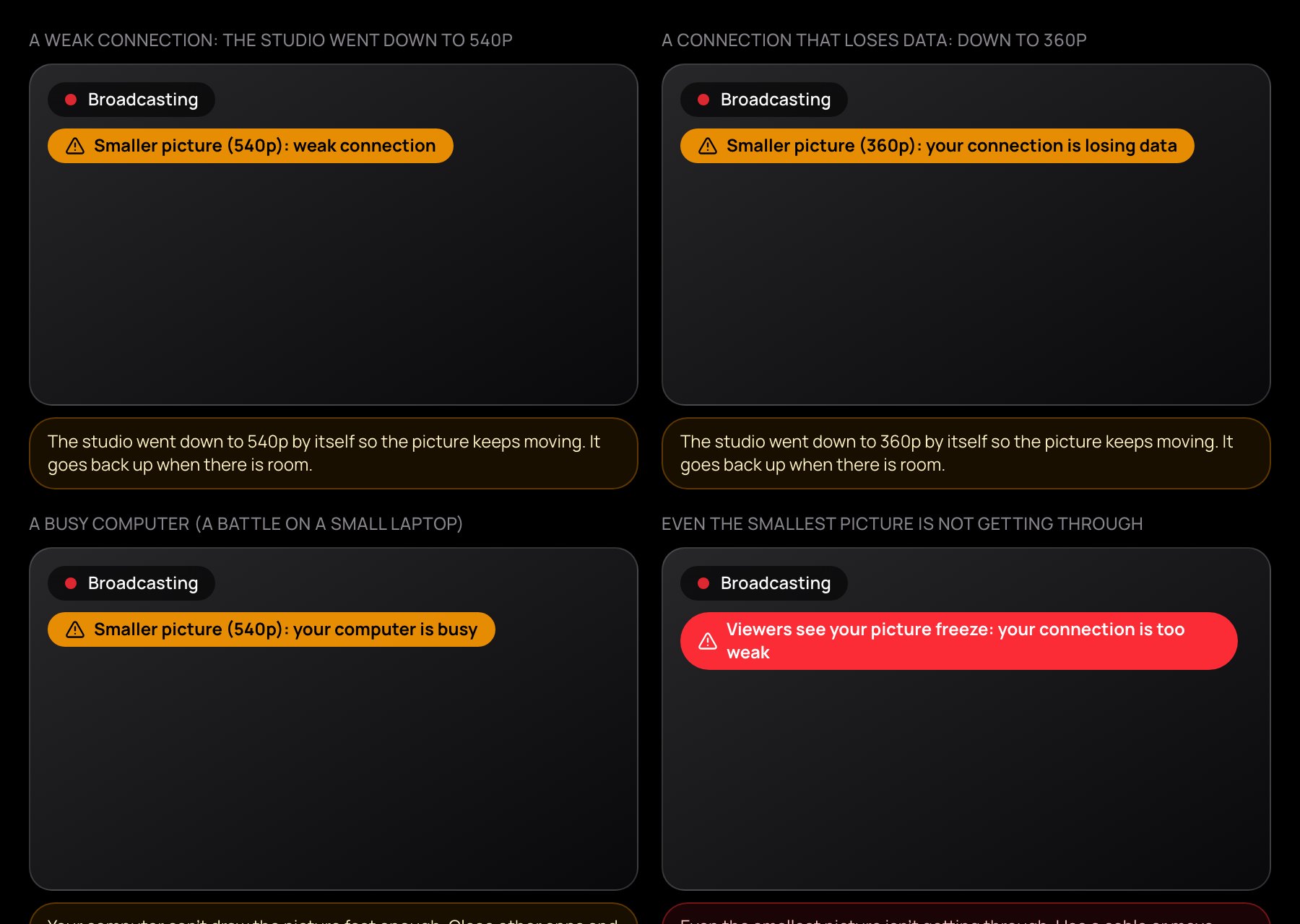
When your connection or computer can't keep up, the studio sends a smaller picture that keeps moving instead of freezing. A chip over the preview says so, with a tip below; the size goes back up by itself. If the broadcast stops, press Resume broadcast.
Ending
Press End stream. Your Dashboard opens; the replay appears there within a minute or two and stays for 30 days. See how it went shows the stream's numbers.