Getting started
Settings and profile
Change the language, your notifications, your name and photo, and the other settings in your account menu.
Everything here is in the account menu. Tap your picture at the top right, then Menu.
Language
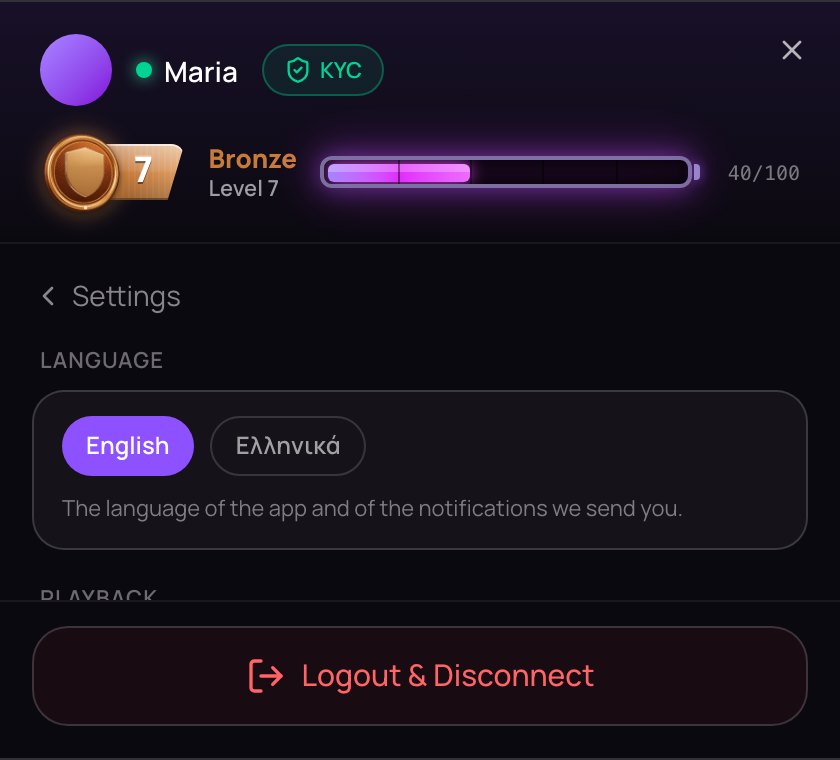
NETSTREAM speaks English and Greek.
- On a computer: the round EN / ΕΛ button at the top of the page.
- On a phone: Menu → Language, then English or Ελληνικά.
- Signed out: the language links at the bottom of the sign-in box.
The page loads again in that language. Your choice is kept on this device, and once you are signed in, the notifications we send you come in your language too.
Your name and photo
Go to Menu → Your profile. This is what people see when you chat or send a gift.
- Name: 2 to 30 characters, not a link, no
<or>. Tap Save. - Photo: tap Add a photo (or Change photo). JPG, PNG or WebP, up to 5 MB.
- See how others see you opens your public page.
If you hold a NETSTREAM NFT, the same page edits your channel — see Your channel.
Settings
Go to Menu → Settings. Settings are saved to your account and follow you to every device. The language, notifications On this device and Sharper picture (trial) belong to each device.
| Group | What you can change |
|---|---|
| Notifications | On this device, Creators I follow go live, Scheduled streams, Gifts and subscriptions, Messages |
| Messages | Who can send you message requests: Everyone or Only supporters. Blocked people, with Unblock. |
| Playback | Autoplay streams, Show 18+ streams, Sharper picture (trial) |
Supporters are people who sent you a gift or subscribe to you: they can always message you directly. You block someone from a chat's menu.
Sharper picture (trial) draws a stream smaller than 720p more sharply on this device, and switches itself off if the device can't keep up. Autoplay streams off means you tap to play, which saves data.
On iPhone and iPad, notifications need NETSTREAM on your Home Screen: tap Share → Add to Home Screen, open NETSTREAM from there, then switch on On this device.
Also in the menu
- Verification — your identity check and its state.
- Membership — the NETSTREAM NFTs. See Becoming a creator.
- Referrals — your invite link. See Referrals.
- Help centre, Trust: money & data and Legal, under About.