The studio
Sound, screen and scenes
Set how loud each sound is, share your screen, switch scenes, add a caption and play crowd sounds.
Beside the preview, the browser studio has four tabs for this: Sources, Sound, Scene and Overlay.
The sound mixer
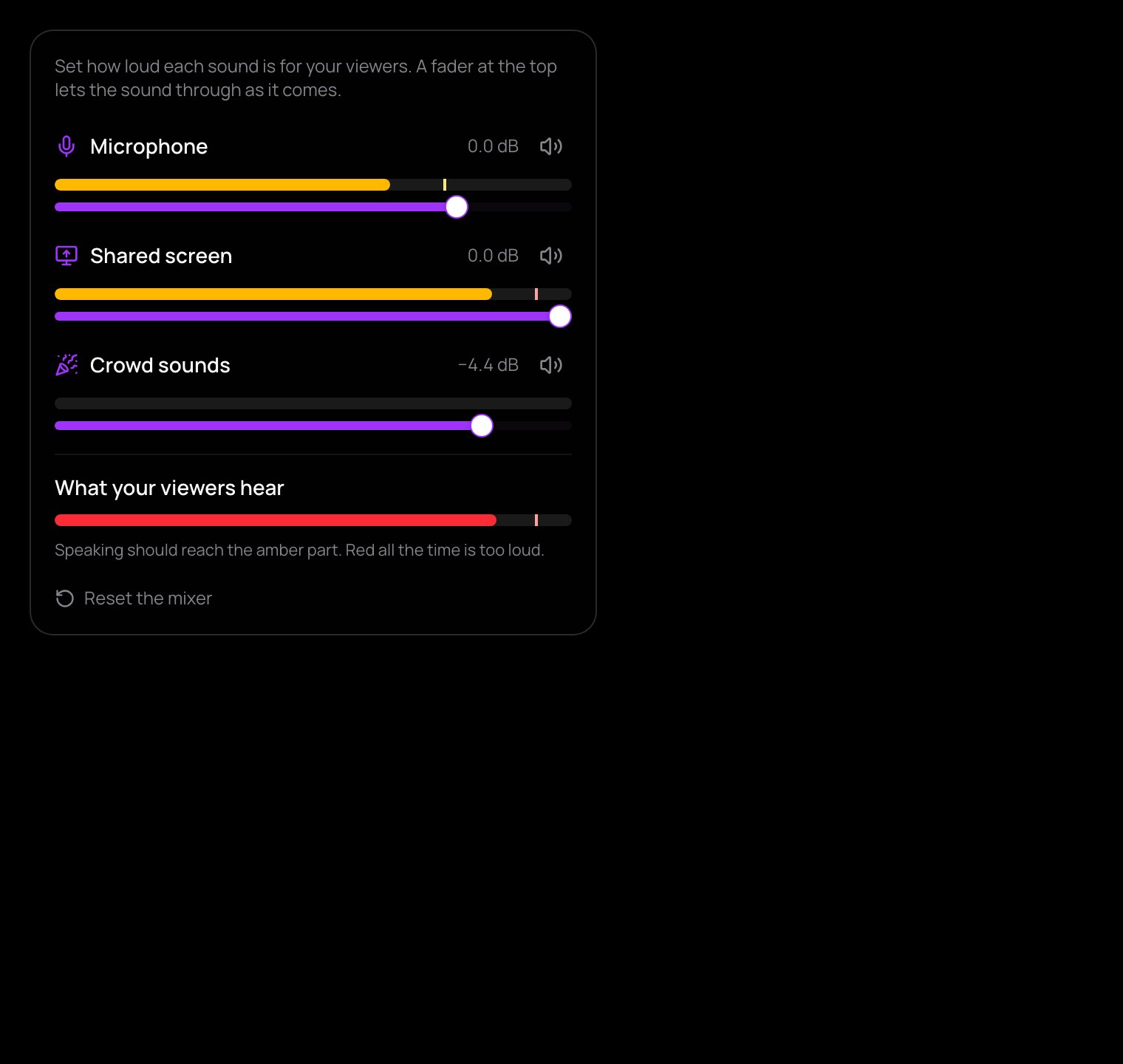
The Sound tab has a strip for every sound that goes out: Microphone, Shared screen, Crowd sounds, and, while they are there, Battle partner and Guests. Each strip has a fader (how loud that sound is for viewers), a mute button and a live meter. Press the number beside a fader to put it back.
At the bottom, What your viewers hear shows everything together. When you speak it should reach the amber part. If Too loud appears, lower the loudest fader. Reset the mixer starts over. Your levels are kept in this browser.
Sharing your screen
In Sources, press Share screen and choose a window, a screen or a tab. Share a browser tab in Chrome to bring in its sound too, then set its level with the Shared screen fader. Sources is also where you pick your camera and microphone.
Screen sharing needs a computer: on a phone you stream your camera. While guests are on stage or during a battle, viewers see cameras, not your shared screen.
Scenes
Under the preview are four scenes: Just chatting, Screen + me, Side by side and Screen only. Click one, or press 1 to 4. A screen scene starts screen sharing if it isn't on yet.
In the Scene tab you can rename the scene you're on and set its Layout, Camera shape, Bubble corner, Bubble size, Mirror camera and Background. Scenes are kept in this browser.
Overlay
- A caption across the bottom of the picture: type a title and a line of text, then press Show caption on stream. Hide caption takes it off.
- Gifts land on me: a gift puts a crown, wings, laser eyes or fire breath on your face for a few seconds. Bigger gifts, bigger moments.
Crowd sounds
Next to the microphone button are three buttons: applause 👏, laughter 😂 and wow 😮. A press plays the sound into your broadcast, so everyone watching hears it and it is in the replay. They cost nothing.
Keyboard shortcuts: M mutes your microphone, B turns BRB on and off, 1 to 4 switch scenes.
In a live event there is no Overlay tab and no crowd sounds; scenes still work.